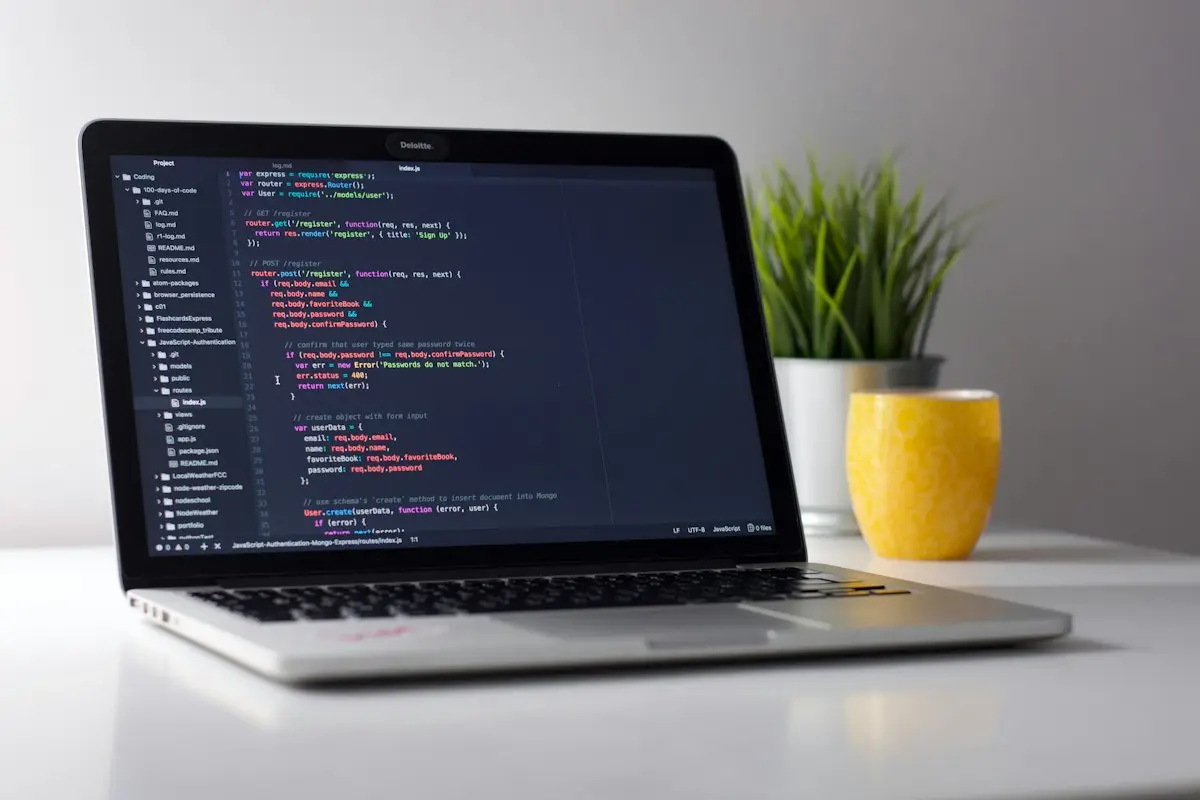
You pasted a snippet into functions.php to hide a menu item, change a WooCommerce label or add a tracking code. You saved it. Now the site shows a single line of grey text instead of your home page, something like:
Parse error: syntax error, unexpected token "}" in /home/youraccount/public_html/wp-content/themes/yourtheme/functions.php on line 214
Or, on older PHP versions, Parse error: syntax error, unexpected '}', or unexpected end of file, or unexpected T_STRING. The dashboard may be unreachable too. It looks bad, but this is one of the kindest errors PHP gives you: it tells you which file is broken and roughly where. The fix is usually a matter of minutes once you can get at that file.
What a parse error actually means
Before PHP runs any code, it reads the whole file and checks that it is written in valid PHP, the way a proofreader checks grammar before reading for meaning. A parse error means that check failed. PHP found a character it did not expect at that point, gave up, and ran nothing from that file. Because functions.php and plugin files load on every request, one stray character can take down the whole site, front end and admin alike.
What you see depends on the server’s settings. If PHP is set to show errors, you get the raw message above. If not, WordPress catches it and swaps in its own critical error notice, and may email the site’s admin address with details and a recovery mode link. Some setups just show an empty page or a 500 error. In every case, the underlying message with the file and line is in the error log. Our post on reading WordPress and server error logs shows where to find it if all you can see is a generic screen.
The usual causes
1. A pasted snippet with a small mistake
By far the most common. Code copied from a blog post, a forum answer or an AI chat often has one of these problems:
- Curly quotes. Word processors, some websites and some chat tools turn straight quotes
"and'into typographic ones such as “ ” and ‘ ’. PHP does not treat curly quotes as quotes at all. - A missing semicolon at the end of a line. PHP often reports the error on the line after the real mistake, because that is where it notices.
- Unbalanced brackets. One
{without its matching}, or an extra one, often from copying only part of a function. - A second opening tag. Many snippets start with
<?php. If you paste that into a file that is already in PHP mode, you can end up with a stray tag where PHP expects code. - A snippet pasted inside another function, so a function is declared halfway through someone else’s code.
2. Code written for a newer PHP than your server runs
PHP adds new syntax over time. Arrow functions such as fn($x) => $x * 2 need PHP 7.4 or newer. The nullsafe operator ?-> and the match expression need PHP 8.0 or newer. On an older server, that perfectly valid modern code produces a parse error. This can also happen with a plugin update that assumes a newer PHP version than your host provides. Check your PHP version under Tools > Site Health > Info, in the Server section, or in your hosting panel.
3. An interrupted upload or a half-saved file
If an FTP upload or a manual plugin update was cut off, a file can end mid-line. The usual message then is unexpected end of file. Re-uploading a complete copy of that plugin or theme fixes it.
4. Edits to wp-config.php
Adding debug or memory constants to wp-config.php is common, and so is breaking it with a missing quote or semicolon. Because this file loads before almost everything else, a parse error here usually means the site shows the raw message or nothing at all, and WordPress’s recovery tools cannot help.
Fixing it, step by step
You will need file access: your host’s file manager, FTP or SFTP. Before editing the broken file, download a copy of it to your computer, so a failed fix can always be undone by uploading that copy again.
- Read the error. Note the full file path and line number. The path tells you whether it is your theme, a plugin, or
wp-config.php. - Open that file in the file manager’s editor, or download it and open it in a plain text editor that shows line numbers. Not Word, not a notes app.
- Go to the line number, then look a few lines above it. The mistake is often at the end of the previous line: a missing semicolon, an unclosed quote or bracket.
- If you just added code, remove all of it. This is the fastest fix. Delete the block you pasted, save, and reload the site. Once the site is back, you can work out what was wrong with the snippet at leisure.
- If you did not add anything, the file probably came from an update. Replace the whole plugin or theme with a fresh copy from its official source: rename the broken folder (for example to
pluginname-broken), then upload a clean version. - Reload the site and the dashboard. If a different parse error appears, read it the same way. Sometimes fixing one mistake reveals the next.
- If you cannot find it, put your downloaded copy back if you changed anything, and restore that single file from a recent backup instead of guessing.
If you have command-line access, php -l functions.php checks a file’s syntax without running it, which is handy for confirming a fix. The full details of PHP’s own error messages are in the PHP manual.
What about recovery mode?
For errors in plugins or themes, WordPress often sends an email to the admin address saying the site is experiencing a technical issue, with a special login link. Following it opens wp-admin while the broken extension is held back, which gives you a chance to switch it off properly. It is a good route if file access is awkward. The email does not always arrive, especially on sites whose email is not set up properly, so do not wait on it. Our page on fixing the WordPress critical error covers recovery mode in more detail.
Why the dashboard editor did not catch it
WordPress’s built-in theme and plugin file editor tries to protect you. When you save a PHP file there, it checks whether the change caused a fatal error and, if it did, puts the old version back. That is why many parse errors come from edits made over FTP, in a hosting file manager, through a code snippets plugin, or by a plugin update, rather than from the dashboard editor. If the check cannot complete, the editor reverts the change and asks you to upload it another way. That is a hint not to try the same edit over FTP without checking it first.
Related errors that look similar
- “Cannot modify header information – headers already sent” often follows edits too, typically caused by stray whitespace outside the PHP tags at the top or bottom of a file. It has its own fix, set out in why WordPress says headers were already sent.
- “Fatal error: Cannot redeclare…” means a function with the same name exists twice, often because the same snippet was pasted twice, or into both a parent and child theme.
- “Call to undefined function” is not a syntax problem. The code is valid but calls something that is not loaded, often a function from a plugin that has been deactivated.
Stopping it happening again
- Do not put custom code in a parent theme’s
functions.php. Theme updates replace that file, and edits are lost or broken. Use a child theme, or a code snippets plugin, which can usually disable a broken snippet. Our guide to customising a WordPress theme explains child themes. - Paste code through a plain text editor first to strip curly quotes and hidden formatting.
- Test new snippets on a staging copy, not on the site customers are using.
- Keep a note of every snippet you add, what it does and where it came from. When something breaks a year later, that list saves real time.
- Edit with a proper code editor. Free editors such as Visual Studio Code or Notepad++ colour PHP as you type, so an unclosed quote or bracket stands out because everything after it changes colour. That alone catches most of the mistakes listed above before the file ever reaches the server.
- Check the PHP requirement of plugins and snippets against your server before installing.
For other errors you might hit while working on your site, our overview of common WordPress errors is organised by what you see on screen.
If the site is still down
If you have no file access, the error points at a file you do not recognise, or every fix produces a new error, it is often quicker to let someone with the right access look. Paste the full error into a WhatsApp message or the contact form. We copy the site first, then report back on the cause; this sort of problem sits with our critical error repair work.


