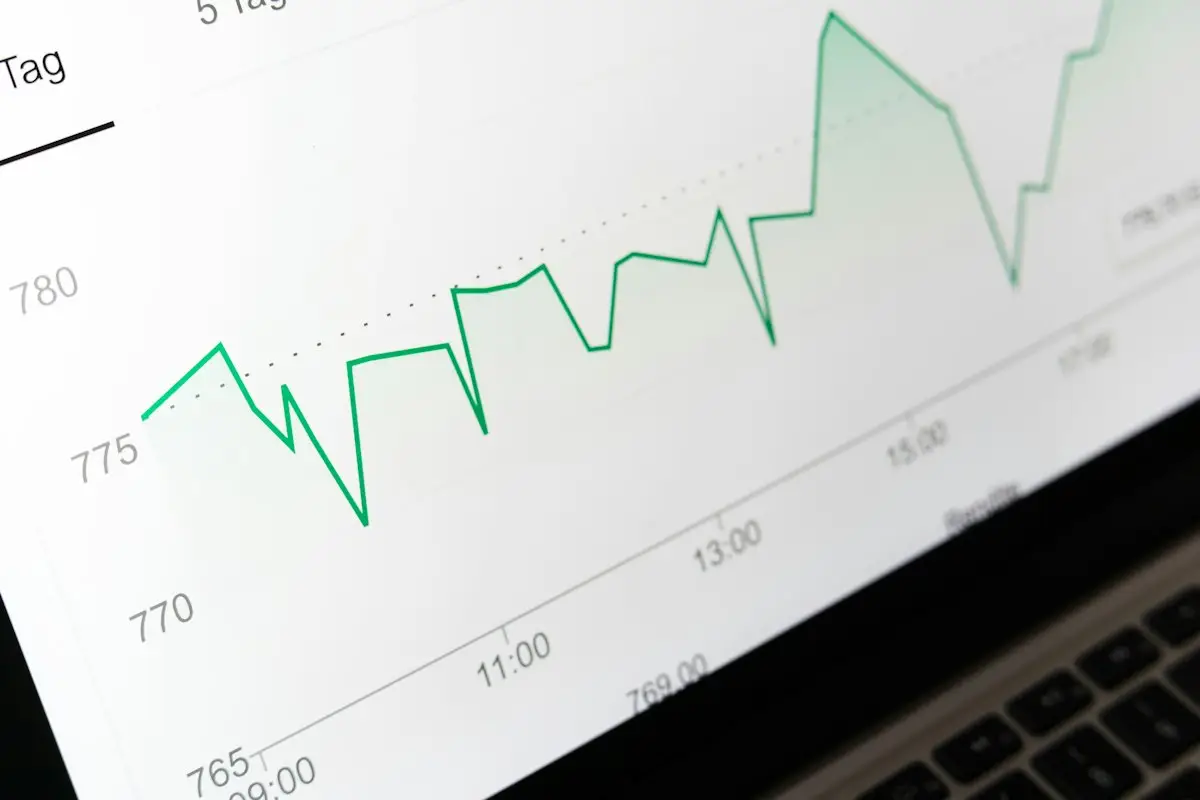
On Friday the site was fine. On Monday morning every page takes several seconds, the dashboard drags, and a customer has already messaged to ask if you are still in business. Nobody on your side admits to touching anything. The host’s support chat says the server looks normal.
Oddly, a site that turns slow overnight is easier to deal with than one that has always been slow. Something happened at a particular time. From the moment you notice the website suddenly slow, the job is to pin down that time and then find what changed on or just before it. The checklist below puts the quick, safe checks first.
Pin down when it started
“Recently” is not precise enough. Before you look for causes, try to fix the moment the slowness began, to the day if you can, and ideally to the hour.
- Uptime or monitoring history. If you use any uptime monitor, it usually records response times. A step up in the graph is the start date.
- Speed test history. Some tools keep your earlier results. Search Console’s Core Web Vitals report also shows trends, though it is built on a rolling 28 days of visits, so it confirms a change rather than pinpointing it.
- Analytics. A drop in pages per visit or a rise in visitors leaving straight away can mark the day.
- Messages and complaints. The first customer or staff member to mention it gives you an upper limit.
- Your own memory. When did you last notice it being quick? That gives you the lower limit.
With a window of a day or two, the list of suspects shrinks a lot.
The what-changed checklist
Work through these groups. For each item, the question is simply: did this happen inside the window?
Changes on your own site
- Updates to WordPress, the theme or plugins. A frequent cause, including automatic updates nobody noticed. If this is your situation, the dedicated post on a site that slowed down after an update goes through it in detail.
- A new plugin or a new feature switched on in an existing plugin.
- New content. A huge image or a video added to the home page, a gallery with dozens of full-size photos, a new embedded map or social feed.
- New code from marketing. A tracking pixel, a heatmap tool, a new chat widget or a tag added through a tag manager, often by someone who does not think of it as “changing the website”.
- Settings changes. Someone turned off the caching plugin while fixing something else and forgot to turn it back on, or changed an optimisation setting.
Changes at your host
- A server move or maintenance. Hosts sometimes migrate accounts to new servers; the new one may be configured differently.
- A PHP version change made by the host, sometimes with a different set of extensions or settings.
- Changed account limits, or a busy neighbour on a shared server.
- An outage or slowdown on their side. Check the host’s status page and any email they sent around that date.
Changes in the outside world
- Bot traffic. A new crawler, a scraper or a wave of login attempts can use up server resources without a single extra customer arriving. How bots slow a site down and how to spot them covers what to look for in the logs.
- A slow outside service. If a font provider, map, chat tool or payment script is having a bad day, your pages wait for it.
- DNS or CDN changes, including a renewed domain pointed somewhere slightly different, or a CDN setting reset.
Things that change without anyone touching them
- A full disk. When hosting storage fills up, often with backups or log files, caches cannot be written and some things slow down or fail.
- Cache stopped working. A cache folder that can no longer be written to, or a cache that was purged and is not refilling.
- A database table that grew. Logs, sessions or expired data piling up until queries slow down.
- A stuck scheduled task that keeps running and failing in the background.
A hack
Malware sometimes shows itself first as a slow site. Injected scripts loading from strange domains, thousands of spam pages being generated, or the server being used to send email or attack other sites all use resources. If you see unfamiliar domains in the browser’s network panel, new admin users, or odd pages in Google results, read the signs that a website has been hacked before doing anything else.
Where to look when the website became slow overnight
A few sources answer most of the questions above. None of them change anything, so they are safe to check first.
- The host’s status page and emails. Two minutes, and it rules the host in or out.
- The hosting panel’s usage graphs. Processor, memory, processes and disk space over time. A jump on the start date, or a disk at its limit, is a strong lead.
- The update history. WordPress does not keep a simple log by default, but activity log plugins do, and many hosts and maintenance tools record updates. Plugin version numbers on the Plugins screen, compared with their changelogs, can also date an update.
- The error log. A repeated warning or fatal error starting on the date is often the whole answer. If you have not opened one before, how to read the WordPress error log explains where it lives and what the lines mean.
- The access log. Shows whether request volume rose, and where it came from.
- The browser’s network panel. Load a page with it open. Is the delay in the first request (the server), or in some other file? Is a domain you do not recognise in the list?
- The caching plugin’s status. Is it active, and is it actually serving cached pages?
Website suddenly slow: the first hour, in order
If you need a plan for this morning, this order tends to find the cause without making things worse.
- Confirm it is real: test in a private window, on two devices, and load each page twice.
- Check the host’s status and the usage graphs.
- Check disk space.
- Look at the update history and the error log for the start date.
- Check the caching plugin is active and serving cached pages.
- Look at the network panel for slow or unknown outside requests.
- If you have a suspect, take a backup and test the change on a staging copy, or turn off the suspect for a few minutes at a quiet time.
Write down what you find as you go, with times. If you end up asking your host or a developer for help, that record saves both of you a lot of back and forth.
When nothing seems to have changed
Sometimes every item on the list comes up empty. Then it is worth asking whether the site was really quick before, or whether you only noticed the slowness now: on a new phone, a different connection, or after a customer mentioned it. If you cannot find a date, treat it as a general speed problem and start from the triage for a slow website instead. The wider hub on making a website faster has the rest of the sections.
Mistakes to avoid
- Restoring an old backup straight away. It may remove the clue, and if the cause was a hack it may not remove the hack.
- Updating everything again in the hope it fixes itself.
- Accepting “the server looks fine” without seeing the usage graphs yourself.
- Turning off plugins on the live site at the busiest time of day.
- Ignoring a full disk because “the site still loads”.
Frequently asked questions
Can other sites on my host’s server slow mine down?
On shared hosting, to a degree, yes. Accounts share one machine, and although hosts set limits per account, a very busy neighbour can still affect disk and processor time for everyone. If your own usage graphs look normal but the site is slow, ask the host whether the server itself was under heavy load on that date.
Should I just restore yesterday’s backup?
Only once you have an idea of the cause. A restore can hide what changed, lose recent orders or messages, and will not help if the problem is at the host or in bot traffic. If you do restore, keep a copy of the current site first so you can still investigate it.
My host says nothing is wrong. How do I check for myself?
Ask for, or look at, the usage graphs for processor, memory, processes and disk over the past few weeks, and the error log for the day it started. Compare the server wait in a speed test with an older result. Concrete evidence like this usually gets a more useful answer from support than a general complaint.
How do I know if my caching plugin has stopped working?
Open a page in a private window and check the response headers in your browser’s developer tools; many caching plugins add a header showing a cache hit, or a comment at the bottom of the page source. If neither appears, or the server wait is long on every load, the cache is probably not serving pages.
Keep your notes, whatever you decide. If the trail goes cold, or the fix is one you would rather not attempt on a live site, our website speed optimisation service can start from them: an audit, a prioritised list of what to change, and changes made only with your approval.
Next in this series: Website Slow After Installing a Plugin? What to Check


