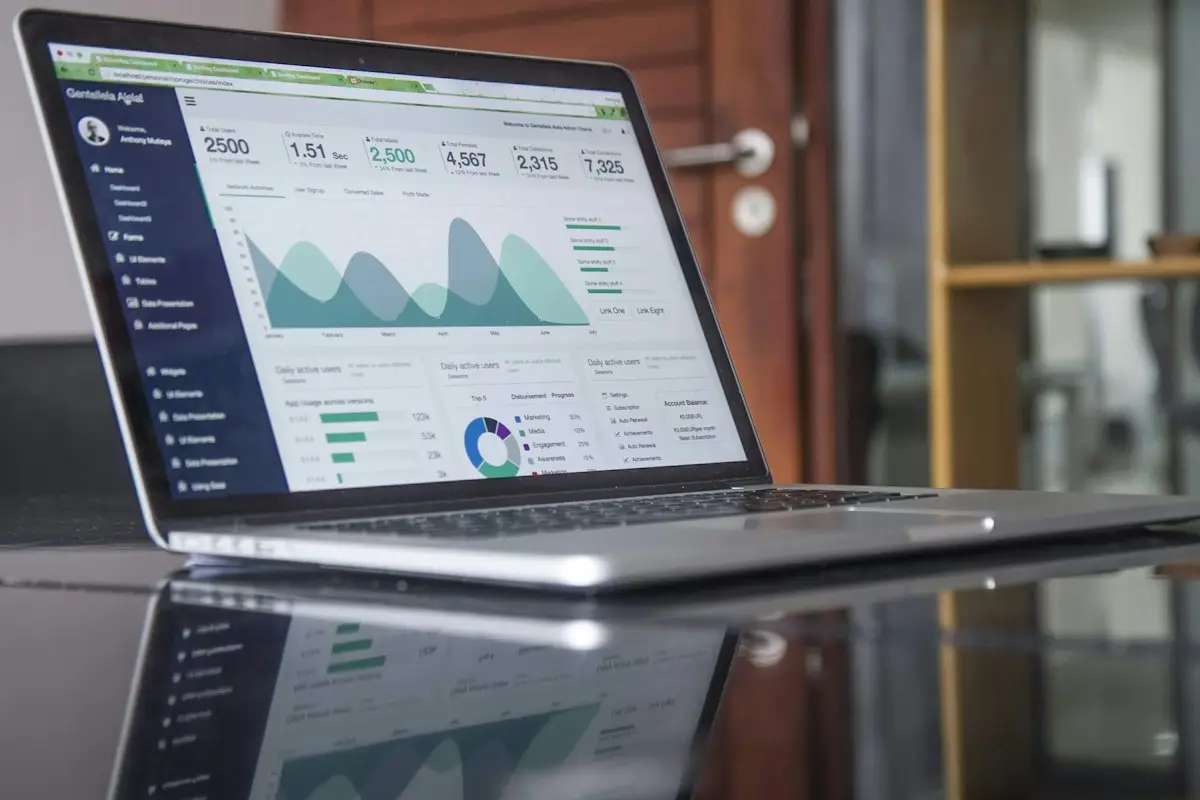
A green Lighthouse circle in a developer’s screenshot and an orange PageSpeed Insights circle on your own screen, for the same page on the same afternoon, is one of the most common sources of friction between site owners and the people who build their sites. It looks as if one of you has made a mistake. More often, the same test engine has been run in two very different places and has given two honest answers to slightly different questions.
This post is a straight comparison of Lighthouse vs PageSpeed Insights: what they share, why their results drift apart, how extensions and logged-in sessions skew a local Chrome Lighthouse speed test, and which one to use for which job.
The short version
Lighthouse is Google’s open-source tool for auditing a web page. It measures performance, and also checks accessibility, best practices and basic SEO. PageSpeed Insights is a web page run by Google that, among other things, runs Lighthouse for you on Google’s servers and shows the result, plus real-user data from Chrome where your site has enough visitors.
So the performance part of a PageSpeed Insights report is a Lighthouse report. The differences come from where it runs, how it is configured, which version is used, and what else sits on the page around it.
Lighthouse vs PageSpeed Insights, side by side
| Lighthouse in Chrome DevTools | PageSpeed Insights | |
|---|---|---|
| Where the test runs | On your own computer, in your browser | On Google’s servers |
| Network used | Your connection, with throttling applied on top | Google’s data-centre network, with throttling applied |
| Real-user (field) data | Not in the Lighthouse report | Shown at the top when available |
| Can test pages not on the public internet | Yes: local, staging or password-protected sites you can open | No: Google must be able to reach the URL |
| Affected by your browser extensions and open tabs | Yes, unless you run it in a clean profile | No |
| Lighthouse version | Whatever ships with your Chrome | Whatever Google is running at the time |
| Test modes | Page load, plus modes for user interactions and snapshots | Page load only |
For a fuller look at each part of the PageSpeed Insights report, see our walkthrough of reading a PageSpeed Insights report.
Why the two scores differ
Your computer is not Google’s test machine
Lighthouse slows things down to imitate a mid-range phone, but it does so relative to the machine it runs on. A powerful laptop, slowed down, is still faster than a modest one slowed down by the same amount. Run Lighthouse on a high-end development machine and you will tend to see better scores than on an ordinary office laptop, and both may differ from Google’s servers.
What else the computer is doing matters too. Video calls, a dozen tabs, a backup running in the background: all of these compete for the processor during the test and can lower the result, especially Total Blocking Time.
Your network is part of the picture
Throttling makes the connection behave like a slower one, but where your connection actually reaches the server still has an effect. A test from an office in Kolkata to a server in Mumbai and a test from Google’s infrastructure follow different routes. The figures can differ for no reason connected with your site.
Extensions run inside the page
Ad blockers, password managers, grammar checkers, coupon tools and SEO toolbars inject their own scripts into the pages you visit. During a Lighthouse run in a normal Chrome window, they can add work to the main thread or block requests the real page makes. Lighthouse itself warns when it detects that extensions may have affected the result.
An ad blocker can even make results look better than reality, by silently blocking the analytics and ad scripts your visitors would load.
You may be logged in
This catches WordPress site owners more than anything else. If you run Lighthouse in the same browser where you are logged in to WordPress, you are testing the logged-in version of the page. That version normally skips the page cache, shows the admin toolbar and may load extra scripts. It is slower than what visitors get, sometimes much slower.
Different versions of Lighthouse
Google updates Lighthouse regularly, and each new version can change how metrics are measured or weighted. The version built into your Chrome depends on which Chrome release you have; PageSpeed Insights may be on a newer or older one at any given moment. Both reports state the version, usually near the bottom or in the run settings, so check it when comparing.
Storage and cache settings
By default, Lighthouse in DevTools clears the browser’s stored data for the site before testing, so it behaves like a first visit. That option can be switched off. If someone ran it with storage kept, the result reflects a returning visitor with cached files, which will look quicker.
Getting a fair Chrome Lighthouse speed test
If you want local Lighthouse results you can compare with each other, and roughly with PageSpeed Insights, set things up the same way every time:
- Open an incognito window, or a Chrome profile with no extensions. In incognito, extensions are disabled unless you have specifically allowed them there, and you are not logged in to your site.
- Close other heavy tabs and programs while the test runs.
- Open the page, then open DevTools and choose the Lighthouse panel.
- Choose the page-load (navigation) mode, select mobile or desktop, and tick only the Performance category if speed is all you need. Fewer categories make the run quicker.
- Leave the default throttling and storage settings unless you have a reason to change them, and note it if you do.
- Run it several times and keep the middle result. A single local run is as noisy as a single PageSpeed Insights run, often more so.
Even then, do not expect the numbers to match PageSpeed Insights exactly. Compare a tool with itself: local Lighthouse before a change with local Lighthouse after it, PageSpeed Insights before with PageSpeed Insights after.
When to use which
Use PageSpeed Insights when
- You want to see real-user data and whether the page passes Core Web Vitals.
- You need a neutral result to share with someone else, without arguments about whose laptop ran it.
- You are checking a live public page and want a quick, standard reading.
Use Lighthouse in Chrome when
- The site is on a staging server, behind a password, or on a local machine where Google cannot reach it.
- You are making changes and want to test quickly, over and over, without waiting on a web tool.
- You want to test an interaction rather than just a page load, using the modes that record what happens while you click around.
- You want to dig into the details alongside the other DevTools panels, such as Network and Performance.
Lighthouse can also be run from the command line, which developers use to test many pages or to build checks into their deployment process. For most site owners, the browser panel and PageSpeed Insights cover everything. The project’s own documentation is on the Chrome for Developers Lighthouse overview.
Where real-user data fits in
Neither a local Lighthouse run nor the lab half of PageSpeed Insights tells you what real visitors experienced. Only the field data does, and of these two tools only PageSpeed Insights shows it (Search Console has its own Core Web Vitals report). If a local Lighthouse score is excellent but the field data says the page fails on mobile, believe the field data: your visitors’ phones and networks are the reality the lab is trying to imitate. Why the two kinds of data disagree is covered in more depth in our explanation of field versus lab measurements.
Lab tools still matter, because they tell you why a page is slow and let you check a fix immediately rather than waiting weeks for field data to update. Used together, as part of a consistent website speed testing routine, they give you both the diagnosis and the proof. If you are piecing together the whole subject, the overview on making a website faster is the place to start.
Frequently asked questions
Is Lighthouse more accurate than PageSpeed Insights?
Neither is more accurate in general. They use the same engine under different conditions. PageSpeed Insights gives a standard, neutral result from Google’s servers plus real-user data when available. Lighthouse on your computer reflects your machine and network. Accuracy comes from testing consistently with one tool and comparing it with itself over time.
Why does Lighthouse say Chrome extensions affected my results?
Extensions can add their own scripts to the pages you visit, and Lighthouse notices when they may have influenced the load. Run the test again in an incognito window or a separate Chrome profile without extensions. The warning is a sign that the result does not represent what an ordinary visitor’s browser does.
Can I run Lighthouse on a staging site that Google cannot see?
Yes. Because Lighthouse in Chrome runs in your own browser, it can test any page you can open, including local development sites and password-protected staging copies. PageSpeed Insights cannot, because its servers need to load the page over the public internet.
Should my developer and I use the same tool?
It helps. Agree on one tool and one set of conditions for progress reports, such as PageSpeed Insights mobile, five runs, median result, same URLs. Your developer can still use local Lighthouse for quick checks while working, but the numbers you discuss and compare should come from the agreed setup.
Arguments over whose score is right tend to stop once everyone agrees on one test setup. Our website speed optimisation service reports its before-and-after results from a fixed setup for that reason, so everyone is looking at the same evidence.
Next in this series: How to Use WebPageTest: A Beginner’s Guide


