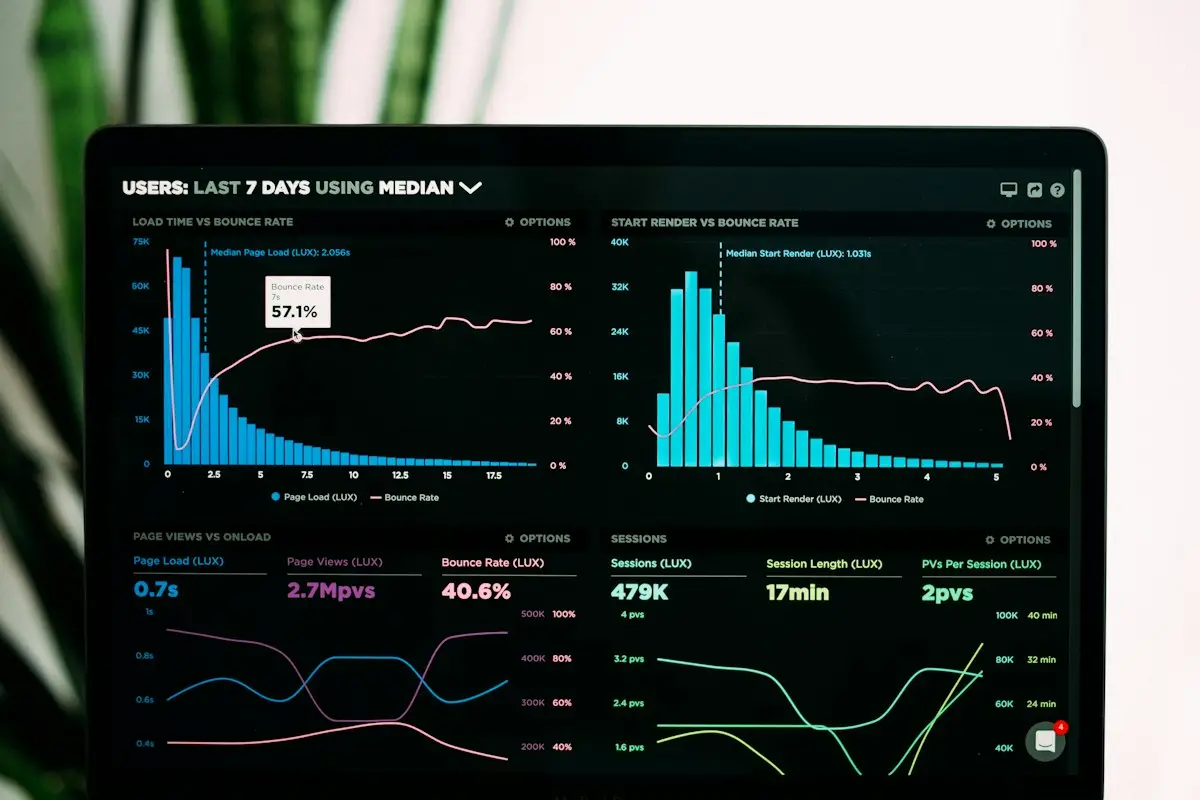
The site is slow, you suspect a plugin, and you have thirty of them. Switching them off one at a time on the live site while customers browse feels reckless, and guessing feels worse. You want to know which plugin is slowing your site, with some evidence, before you remove or replace anything.
This post is the measuring part. It shows how to find a slow plugin in WordPress using a profiling plugin, a staging copy, a disciplined switch-off routine and, where your host allows it, the server’s own slow logs. If the slowness began right after you installed something new, you already have your suspect, and the shorter checklist in confirming whether a newly installed plugin is to blame will get you there faster.
Before you start: decide what “slow” means here
A plugin can be slow in three different ways, and the method depends on which one you are chasing:
- Slow server time. The page takes a long time before the first byte arrives. Something is doing too much work in PHP or the database, or waiting on another server.
- Slow in the browser. The server answers quickly, but the page is held up by large scripts, styles or fonts a plugin adds.
- Slow afterwards. The page looks loaded, but background requests keep the server busy and make the next clicks sluggish.
Write down two or three specific pages that feel slow, such as the home page, a product page and the contact page, and note how long each takes in a speed test, run three times. That is your baseline. Without it you cannot prove a change helped.
One trap: if a page cache is serving your test, plugins barely run and the numbers hide them. Profile server time as a logged-in administrator (most caches skip logged-in users) or on a copy of the site with caching switched off. For browser-side weight, logged-out tests are fine.
Step 1: Profile the page with Query Monitor
Query Monitor is a free plugin from WordPress.org that reports what happened during the page you are looking at. Install it, stay logged in as an administrator, and open a slow public page. A new item appears in the admin bar showing page generation time, peak memory and the number of database queries. Click it to open the panels.
For plugin hunting, four panels do most of the work:
- Queries by Component. Groups every database query by the plugin, theme or core code that ran it, with total time. Sort by time. A single plugin responsible for most of the query time stands out.
- Duplicate Queries. The same query run many times on one page usually means a plugin is looping badly, for example fetching data once per product in a list.
- HTTP API Calls. Requests WordPress made to other servers while building the page. Any outside call during a normal front-end page load is worth questioning, and one that takes seconds is often your answer.
- Scripts and Styles. Every CSS and JavaScript file queued for the page, with the component that added it. Useful for spotting plugins that load their files on pages where they do nothing.
Treat the numbers as relative. Query Monitor adds its own overhead, and a logged-in page does more than a visitor’s page. What you are looking for is proportion: one plugin taking far more time than the rest. Repeat on two or three pages, because a plugin that is heavy only on product pages will not show on the home page.
When you are finished, deactivate Query Monitor. It is for investigation, not for leaving on.
What Query Monitor will not show you
It reports what happens inside one page request. It does not show background requests fired after the page loads, scheduled tasks that ran on someone else’s visit, or browser-side cost such as how long a script takes to run on a phone. For background requests, open your browser’s developer tools on the Network tab and watch what fires after the page settles. Repeated calls to admin-ajax.php are common enough to have their own guide to tracing admin-ajax requests back to a plugin.
Step 2: Make a copy you can break
Switching plugins off one by one is the most reliable test there is, and it is also the one most likely to upset a live site. Forms stop working, layouts change, a store loses its payment option. Do it on a staging copy if you possibly can. Many hosts offer one-click staging, and our post on setting up a WordPress staging site covers the other routes.
If staging is not available, the Health Check & Troubleshooting plugin offers a troubleshooting mode that disables plugins and switches the theme for your browser session only. Visitors keep seeing the normal site. It suits quick checks, though it cannot show you how the site behaves for logged-out visitors.
Make sure the copy really is comparable. Same PHP version, the same plugins and settings, a similar amount of content. A staging site on a quieter server may feel faster across the board; what counts is the difference between tests on that same copy.
Step 3: Switch plugins off in a sensible order
Deactivating thirty plugins one at a time and testing after each is slow. Halving is quicker:
- Note the baseline timing on your chosen pages, on the copy.
- Deactivate half the plugins. Keep the caching plugin off throughout, so it cannot mask anything.
- Test again. If the slowness disappears, the culprit is in the half you switched off. If not, it is in the other half.
- Reactivate, then split the suspect half again. Repeat until you are down to one plugin, or one pair that is only slow together.
With thirty plugins, this narrows it down in a handful of rounds instead of thirty. Run each test at least twice, since a single timing can be thrown off by the server having a busy moment.
Do not forget code that is not on the Plugins screen. Must-use plugins sit in wp-content/mu-plugins/ and cannot be switched off from the dashboard. The theme, and especially a theme’s functions.php with custom code, can be the slow part too. If every plugin is off and the site is still slow, switch to a default theme on the copy and test once more.
Step 4: Ask the server what it saw
Hosts can see things that WordPress cannot. Two logs are especially useful, and on many plans you will need to ask support to enable or share them:
- PHP slow log. When a PHP request runs longer than a set threshold, the server writes a stack trace showing which file and function it was stuck in. A path inside
wp-content/plugins/names the plugin directly. - Database slow query log. Lists queries that took longer than a threshold. The table names often give the plugin away, since many plugins prefix their own tables.
The access log helps too. Sort it by the URLs requested most often. A flood of requests to one plugin’s endpoint, or to wp-cron.php, tells you where the server’s time is going even if no single page looks slow. Resource graphs in your hosting panel help you match spikes to times of day or to particular tasks.
Step 5: Confirm before you blame
Once you have a suspect, prove it in both directions. Turn the plugin off and the pages get faster; turn it back on and they slow down again. Do that twice. If you cannot reproduce the difference, keep looking, because it may be a combination, a scheduled task, or the server.
Then work out why it is slow. That changes what you do next:
- A setting. Many heavy plugins have options for exactly this: lazy-loading their widget, caching their output, stopping a live feed, disabling logging.
- Loading where it is not needed. A form plugin’s scripts on every page can often be restricted to the pages with forms, through the plugin’s own options or a script manager such as Perfmatters.
- An outside service that is slow. Contact the plugin’s developer with the HTTP API timing from Query Monitor. Specific evidence gets better replies than “your plugin is slow”.
- A plugin that is simply heavy. Look for a lighter alternative that does what you actually use, not the full feature list.
- Two plugins clashing. When the slowness appears only with a particular pair active, treat it as a conflict rather than a speed problem. Our plugin conflict help deals with those.
For the wider question of whether your plugin list is too long or just has a few heavy items, our guide to judging plugin weight rather than plugin count is the starting point. And if the plugin turns out to be only part of the story, the complete guide to website speed explains how server time, page weight and scripts fit together.
Mistakes when you try to find a slow plugin in WordPress
- Testing with the page cache on. Every plugin looks innocent when a saved copy is being served.
- Testing once. Timings vary between runs. Take a few and compare the middle values.
- Changing two things at once. If you deactivate a plugin and update PHP in the same afternoon, you will not know which helped.
- Forgetting to reactivate. Keep a written list of what you switched off on the copy so nothing is missed when you apply the fix to the live site.
- Blaming the most famous plugin. Large, well-known plugins are suspected first, but small, rarely updated ones turn up just as often.
Frequently asked questions
Is it safe to install Query Monitor on a live site?
Generally yes. Its output is shown only to administrators, and visitors do not see it. It does add some overhead to pages while it is active, so use it for the investigation and deactivate it afterwards. Take a backup first, as you would before adding any plugin to a live site.
What if every plugin is switched off and the site is still slow?
Then the plugins are probably not the main problem. Test with a default theme next, since themes can carry heavy code. If that is still slow, look at the server: PHP version, available resources, database size and whether page caching is working. The host’s resource graphs and slow logs are the best evidence at that point.
Can two plugins be slow only when they are active together?
Yes. One plugin may trigger extra work in another, for example by saving data that the second one reprocesses, or both may hook into the same step and repeat it. Halving the list will reveal this when the slowness only appears with a particular pair active. Report it to both developers with the exact steps.
How do I tell which plugin a slow database table belongs to?
Most plugins name their tables with a recognisable prefix after the WordPress one, such as a short form of the plugin name. Search the table name online or in the plugin’s documentation. Query Monitor also attributes each query to its component, which is often quicker than guessing from table names.
Prefer to hand the detective work to someone else? Our speed optimisation service begins with an audit that identifies the main factors slowing the site, plugins included. You see the findings as a prioritised list before anything is changed, and the fixes go ahead only with your approval.
Next in this series: Slow Elementor Website? How to Speed It Up


